
#GPPT Adding a QR Code to a GP Report Writer Report

 I have been approached a couple of times with the request to place a QR Code (Quick-Response Code) onto a Microsoft Dynamics GP Report Writer report.
My initial response was that it was not possible as there is no way to include a dynamic image in a report. Only static images (such as logos) can be stored in the dictionary and added to reports.
But then I found online a couple of vendors selling QR Code True Type fonts….
The First Request
This is a perfect time to discuss the first time I was approached about adding QR Codes to a GP Report. I was contacted by a customer asking for assistance implementing instructions they had found online to get a QR Code image onto a Dynamics GP report. I read through the instructions, and they all seemed reasonable enough to a new developer. However, as a developer with 30 years of experience in the Dexterity and Dynamics GP world, there were a few things that did not sound right. Two points in particular did not ring true:
- The instructions described using a prefix in a calculated field call to a custom RW function which would allow it to call .Net code.
- The instructions said that the returned image would be a binary object (blob) containing the image.
Both of these are not possible, especially the returned data when we know that only specific data types can be returned and the largest is a string and that is limited to 80 characters anyway.
When I asked the customer for the link to the blog article they got the instructions from so I could review it, they got a little defensive. After a couple of requests, they eventually said that the instructions had been generated by ChatGPT.
So, I reminded them that ChatGPT is a language prediction engine and not a knowledge engine and went back to believing that getting a QR code onto a GP report was not possible.
The Second Request
As already mentioned, the Dynamics GP report cannot just place a generated graphic image onto a report. However, a number of years ago, I was able to get a standard (one dimensional) barcode onto a Dynamics GP report by using a barcode True Type font and some VBA code to “encode” the Item Number to the appropriate characters. When the characters were displayed with on the graphic report in a field formatted to use the barcode font, it displayed as required.
Recently I was approached again, this time because the Dominican Republic government has mandated a QR Code with a URL link to an online tracking system be displayed on invoices from November 2023 onwards.
Here is an example URL for the Dominican Republic system:
This time, I wondered if a similar approach to the previous barcode solution was possible and searched online (Googled it with Bing 😁) for a QR Code font and encoder solution.
I found two solutions available:
- Barcode Resource – QR Code Barcode
Font: CCodeQR_Trial.ttf, Encoder: QRCode.dll - IDAutomation.com – QR Code Font and Encode Suite
Font: IDAutomation2D.ttf, Encoder: IDAutomation.NetAssembly.QRCode.dll
I downloaded the demos for both solutions and looked at how I could implement them using GP Power Tools with a custom RW Function call to encode the data. The approach I ended up using after a bit of experimentation was a GPPT custom RW Function which will call a .Net Execute script when the value of the URL changes from the previous (if any) value. The .Net Execute script will encode the URL using a call to the provided .Net library DLL file and then split the results into lines and store the lines as GPPT Memory Parameters. Back in the custom RW Function, it will return the line of the QR Code text requested in the Control parameter when it was called from a calculated field on the report.
The last piece of the solution is some cleanup code to delete all the Memory Parameters used when they are no longer needed. Initially, this cleanup Runtime Execute script is called as a background process so that it will run after the report has completed. It is also run immediately if the URL value changes in the situation when more than one QR code is printed on the same report.
I also created a demonstration/tester script which would call the .Net Execute encoder script and display the resulting text. The text could be copied into Word and set to “No Spacing” and the appropriate font to display the QR code.
Solution 1
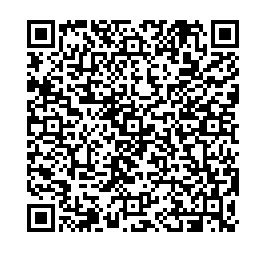
The solution from Barcode Resource uses, 1s (Black Square) and 0s (White Square) to encode the QR Code as bits. To display a URL of up to 255 characters, it required up to 60 lines of text, which meant 60 Calculated Fields needed to be created and those 60 fields placed onto the report. I did cheat by manually editing the exported package file to both create the calculated field and place them on the report and importing it back into GP. Setting the ConnectCode QR Code Barcode Font to 3 point and spacing the 60 fields vertically at 3 pixels apart created a working QR code. But with 60 calls to the RW functions, performance was a little slow.
Note: The performance would probably be better as the later design only calls the encoder once and uses memory parameters to return the 60 lines. The first proof of concept design called the encoder 60 times and only returned the one line at a time.
11111110001011101011011111000111011001110010001111111
10000010111111101100101000001101110011111111001000001
10111010110100001111101010100100010110111001001011101
10111010010010100101010100010000110101111110101011101
10111010100000110011100011111001101010110010001011101
10000010100000011001110110001100010110110010001000001
11111110101010101010101010101010101010101010101111111
00000000100110110000000110001000111111000011100000000
11010011010101101111011111111110110011011000101110110
01100100011101001001010001000101000110011001000011101
01110010100001001010110110110010000011011110001110010
11100001101111001101101010100001101000000110011100110
00100010100011111100101100010010001000111110110010101
10000100001101001010010100100010000100111101000000011
01001011100110010000101010111011101001000111011001110
11101100100000011110010000010011000000111000111111000
11111110001011110101100110100001110111110011010110011
11011100101100110000010010100000100110101100100000001
00011111100010011010011110110001100101010000100110111
00101001111001111001110101001110010100101011001000111
11001111001001111111111000100000111011101110011100011
10111000111000000001010111101011100010011101110011110
11001010001110010010111100110110000000101011110001000
01000001001111010101111011100101001110111100011011110
11101111100001001011110011111001111010111110111110010
11111000101010000000011010001000001001000001100011100
10001010111100100101011110101011000010101001101010011
10001000100000101001000110001111001101100111100011010
11011111101101010010010111111110100101111101111111110
00110001110101100001110000101000111100110010000100010
11001110100000101100101111011111001100100011101001011
10100001111011010110001101101100110110011100110010000
00100010001110011000001011011100011011011000100010100
11110101101100010100100100111001000110001000101010101
11001110010100010001011111001001111010111100111101110
01000001000110010100011011100011101000000110100011010
10010010010111111001111001110000101011011010110000100
11111100101100011000011101000000011101001111110101111
10011110001101100111010110011011101000000110011101101
01001100000101111000011111101010010010011001011000011
10000011110000000010111011100001111111100011011111011
10110100111001101101110100000100100010111100100100011
11011110011000000011101010000001000010011001001100111
01100001110000100000000101001110000101101011101101101
00010010011010111100011111111010101010000110111110000
00000000110010001000010010001011100011100100100010010
11111110101011000100100010101110000001100010101010110
10000010011110011010000110001000001011010100100010110
10111010000011111100101011111100110111111111111110010
10111010111000011101101010000000101001000001001110100
10111010010101111100111000001110010000101111010011001
10000010101011110000111000100111001100100111000011110
11111110100101010110000010111100100111101111001010110
Here is the QR Code generated:
Solution 2
The Solution from IDAutomation.com uses characters A to P to represent 4 vertical pixels meaning that only up to 15 lines are needed to represent the same data. This is the solution I ended up using on the report as it only needed 15 calculated fields to be created and placed. Setting the IDAutomation2D Font to 8 point and spacing the 60 fields vertically at 8 pixels apart created a working QR code.

Note: You can also use lowercase a to p characters to have dots instead of squares.

AHEEEHAPKNIIGKNKBFCKOGFEBFOPGKEBNIKJODLKFOCJOPAHEEEHAP
BNFFFNBPJLIGJOFLJDNKNLFPAHFHALEOMGJDFOJDEGBONPBNFFFNBP
HCHCBKFCGGHDCIPKPGIKIKLOCGHDCNCOOMHGFCNLIAJMEENANAJGLP
GBGACMFFGOKPCFIBHKEIOGLFGEDLCECOKJNKAKGCIAKAMCMPFNFDLP
ICMCOJFKCDADEGGFILAFPFLGKOFLCFLKONMBHINOIKCKHMNEBDBGDP
KADBGJFBOFHGPGLIFJHGFHJNKIFDKMKIOLMADKFAOKCKHCEJDHBLKP
CCJJAHFHAODDMLNKPHIKINOHAHFHAFCPOMNJBKNNKBCJAHFHAJDGLP
KHJGGGFDFJDGPFIKHKEJNELDHGDBHMCKKCMHFDNCPDCIAEGCDBBPLP
GCENIDFCACMPKGHFILAMOIKLLEIFHOKKOPNGFBPPIALILEKMKNHGDP
BOEEHGFAOLLPJGPIHJHKMEKCPBPIFECOKIFCDCFAKMCKKKCOKABDDP
BMCBJNFNLAHMCLMKPHIIPIJKIGKJFJJIMNEHFLMDKKDIAKLHIPDKDP
MNNFNNEPJGEOGEIIHKEIPCJMAHFHANKOOLMFFLMGPECIAHFHAIHDLP
APBBBPAPALPPBHEFILACMKOIBCEDALKOKOFBCDNNKDAEDHFEFJDONP
HHHHHHHPHHHPPPPPHPHPPPPHHHHHPPPPPHHHHHPHPPPHHHHPHHHPPP
Here is the QR Code generated:

Note: Please note that the Solution 2 version will randomly insert DEMO at the Start of the QR code until it has been licensed. It is also more expensive than Solution 1.
[Edit] When using the Licensed version of the IDAutomation.com DLL, it has slightly different parameters than the Demo DLL and does not use the OutputTypes Enum. You will need to edit the Encoder script as described in the comments to otherwise you will get the following error:
The type or namespace name ‘OutputTypes’ could not be found (are you missing a using directive or an assembly reference?)
Here is the Project Setup window showing the RW Function, the two demo scripts with the encoder scripts and the cleanup script along with the SOP Blank Invoice Form report. The scripts using Solution 1 have been named as “Alternate” as Solution 2 provided a more efficient solution.

The RW Function is called from a calculated field using the following syntax:
FUNCTION_SCRIPT(rw_TableHeaderString 5261 "QR_CODE_DEMO" SOP_Document_HDR_TEMP.SOP Number SOP_Document_HDR_TEMP.SOP Type 1 )
Hint: With the SOP Number and SOP Type passed to the RW function, it is possible to get the table data for the SOP_HDR_WORK table and from there retrieve any other data needed. This can then be used to generate a URL as needed. You can use a string with %1, %2 etc placeholders and then insert values using the Dexterity substitute command.
Downloading and Installing
Download the example code, import using the Project Setup window (now possible for first time imports with Build 28.8 onwards), or use Configuration Export/Import window (for older builds):
The code will be active as soon as it is loaded and can be called from the Report Writer using calculated fields and user defined functions.
Update for Malaysian E-Invoice Requirements
Recently, I was approached by a customer with a Malaysian office who needed QR codes on their Sales Order Processing Invoices as the Malaysian government is setting up a similar e-Invoice requirement. We took the sample above and modified it a little to retrieve the data needed to for the URL for the QR code from a SQL table. Here is the sample code that works with the SOP Blank History Invoice.
This sample has been designed to work with the MYEINV customization created by the Malaysian Microsoft Dynamics GP Partner, DynamicBiz.
More Information
For more information see:
- GP Power Tools Portal: https://winthropdc.com/GPPT
- GP Power Tools Samples: https://winthropdc.com/GPPT/Samples
- GP Power Tools Videos: https://winthropdc.com/GPPT/Videos
Hope you find this proof of concept for QR Codes helpful.
David
08-Aug-2024: Added section and sample code for Malaysian E-Invoice Requirements.
29-Aug-2024: Updated Encoder code in both sample projects with different parameters for Licensed version of the IDAutomation.com DLL file.
This article was originally posted on https://www.winthropdc.com/blog.