
#GPPT Implementing Custom Forms using GP Power Tools 2

 When GP Power Tools Build 32 was released, it added powerful Custom Table functionality which allows for a developer to create a custom table definition and have that table created in each company automatically. The table can then be used in a similar fashion to a native Dexterity table using a suite of Custom Table Buffer Helper Functions.
This article updates the original article (below), which explained how to create a Custom Forms Module demonstration project, to use Custom Tables instead of SQL Tables for a much faster and simpler implementation.
The original article used SQL Tables which needed to be manually created in each company by running a SQL Execute script. If the table structure needed to be changed in the future, the data would have to be manually saved and reloaded when dropping and recreating the table. The SQL Tables were accessed using a Parameter List for each table to pass data between the Dexterity and SQL code. There were three SQL scripts needed for each table for the Save (insert/update), Read (select) and Delete (delete) events which were called from three Dexterity scripts. Finally, the Read scripts needed to parse the returned SQL data set into individual fields so they could be displayed.
By using GP Power Tools Custom Tables, the associated SQL tables are created automatically, and the table structure can be quickly updated without any loss of data. Accessing the data uses the same table buffer concepts as native Dexterity tables, just using a suite of Helper Functions for each of the table commands. This means we no longer need the SQL scripts to create the tables, or the scripts Save, Read or Delete events. We also don’t need the Parameter Lists as we no longer need to pass data between Dexterity and SQL code.
Starting with the original CUSTOM_FORMS project (which had already been updated to use Custom Form numbers 10 so it would not clash with other projects), we duplicated it to a new CUSTOM_FORMS2 project.
We then added the definitions for the two tables we needed for Header and Line data. These definitions matched the manual SQL tables originally used.
CUSTOM_FORMS2_01 Header Table
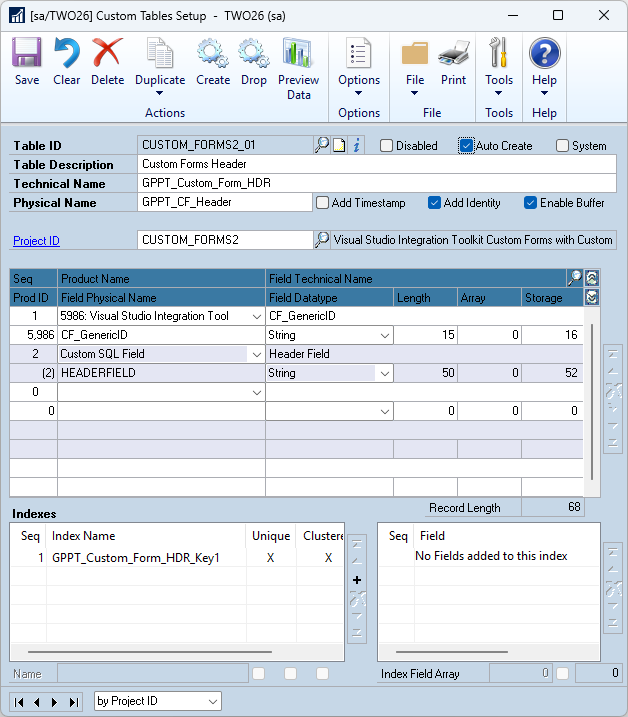
CUSTOM_FORMS2_02 Line Table

Then the six Runtime Execute scripts used for the Save, Read and Delete events for two tables were updated to use the Custom Table Buffer Helper Functions, replacing the calls to SQL Execute scripts with Parameter Lists.
Finally, all the SQL Scripts, Parameter Lists and other deprecated scripts were deleted leaving the final simplified CUSTOM_FORMS2 project.

Downloading and Installing
Download the example code, import using the Project Setup window (without any project showing, select the path to the xml file and click Import):
The code will be active on next login or after switching companies, or you can use start the triggers manually from the Project Setup window.
Note: If you have previously used Version 1 of this sample please either remove or disable the old CUSTOM_FORMS project.
More Information
For more information see:
- #GPPT Implementing Custom Forms using GP Power Tools
- GP Power Tools Portal: https://winthropdc.com/GPPT
- GP Power Tools Samples: https://winthropdc.com/GPPT/Samples
- GP Power Tools Videos: https://winthropdc.com/GPPT/Videos
Hope you find this example useful.
David
16-Mar-2026: Added note about removing or disabling the old CUSTOM_FORMS project.
This article was originally posted on https://www.winthropdc.com/blog.