
#MSDynGP SQL Server 2025 Default Password Verifiers Causing Slow Microsoft Dynamics GP Performance

 After the release of Microsoft SQL Server 2025, we are now starting to see customer sites implementing the new version in their Microsoft Dynamics GP environments.
So far, I have been notified by two customers, that I work closely with, that they are having issues with Dynamics GP performance being slower on the SQL Server 2025 than their previous SQL Server version.
The following information on the issue and a solution has been provided by my colleague and friend, Arthur Achilleos, with a call out to Rob Farley MVP (who assisted Arthur’s troubleshooting).
SQL Server 2025: How Iterated & Salted Hash Password Verifiers Affect Dynamics GP Login Performance
After upgrading from SQL Server 2019 to SQL Server 2025, many Dynamics GP environments began experiencing severe login slowdowns. SQL Server 2025 introduces a major security enhancement: iterated and salted password verifiers based on PBKDF2 (Password-Based Key Derivation Function 2). This replaces the legacy SHA‑1–based verifier with a modern, hardened hashing algorithm designed to resist brute‑force attacks.
From a security standpoint, this is a substantial improvement. But for Dynamics GP – which relies heavily on SQL authentication and opens many short‑lived connections – the change can introduce significant login latency. In some cases, the impact is severe enough to cause GP freezes, posting delays, or complete outages.
Why SQL Server 2025 Introduced PBKDF2
SQL Server 2025 now uses PBKDF2 for SQL login password verification. PBKDF2 is intentionally computationally expensive as it iterates SHA-512 hashing 100,000 times:
- It slows down brute‑force attacks
- It increases the cost of each password verification
- It adds CPU overhead during authentication
Microsoft documents this behavior in the SQL Server 2025 Known Issues page:
“This effect is especially noticeable in environments without connection pooling, or where login latency is closely monitored.”
Dynamics GP fits this description perfectly.
However, this will affect any application using SQL Authentication rather than Windows Authentication. It gets worse if the application opens and closes connections on demand rather than re-uses an existing connection.
Why Dynamics GP Is Uniquely Affected
Most modern applications use Windows authentication and connection pooling, so they barely notice PBKDF2.
Dynamics GP, however:
- uses SQL logins for nearly all users
- opens many short‑lived connections
- does not pool connections efficiently
- may have third‑party add‑ins that open additional connections
- may have customizations that open additional connections
This means GP triggers PBKDF2 hashing far more often than typical applications.
When PBKDF2 becomes the bottleneck, GP users experience:
- slow logins
- delays opening windows
- posting freezes
- SmartList timeouts
- random “Not Responding” behavior
- SQL CPU spikes during business hours
Diagnostic Evidence: What Wait Statistics Revealed
During the incident, SQL Server Wait statistics showed a clear pattern:
- PREEMPTIVE_OS_CRYPTOPS appeared near the top of the wait list
- Other waits were present, but cryptographic waits dominated
- The spikes aligned with GP user login activity
- Disabling TDE (Transparent Data Encryption) or other encryption had no effect
- Switching non‑GP systems to Windows authentication reduced load
This is the exact signature of PBKDF2 login hashing becoming a bottleneck.
Even without exact numbers, the presence of PREEMPTIVE_OS_CRYPTOPS near the top of the wait list is a strong indicator that SQL Server is spending excessive time performing cryptographic work during login.
Resolution: Using Trace Flag 4671 to Disable PBKDF2
Microsoft’s own article on iterated and salted password verifiers (SQL Server 2022 CU12) references Trace Flag 4671 as a way to disable the new PBKDF2 password verifier and revert SQL Server to the legacy hashing behavior. This same trace flag works in SQL Server 2025.
What Trace Flag 4671 Does
- Disables PBKDF2 password verification
- Reverts SQL Server to the legacy SHA‑1–based verifier
- Eliminates the PBKDF2 CPU overhead
- Restores SQL 2019‑level login performance
- Immediately resolves Dynamics GP login latency
In real‑world GP environments, enabling TF 4671 completely resolved the issue.
To enable the Trace Flag:
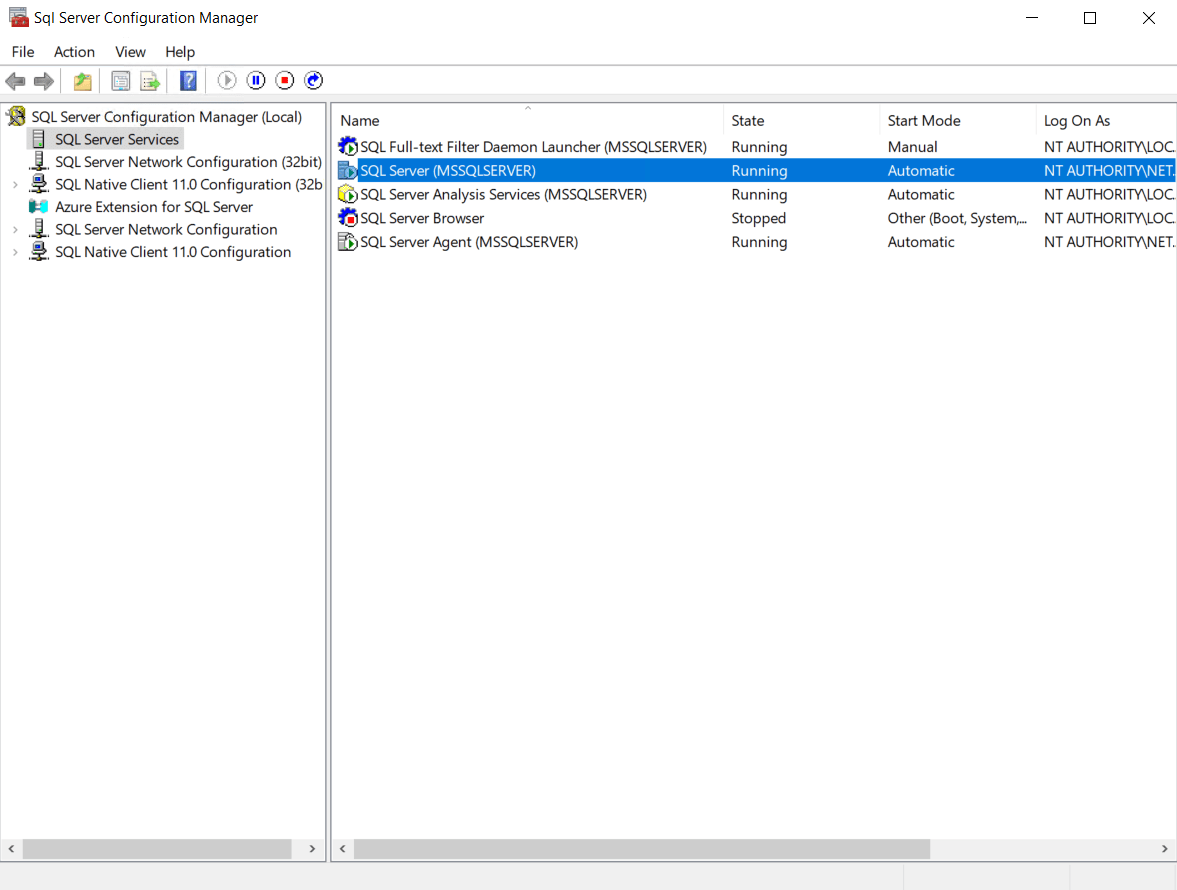
- Open the SQL Server Configuration Manager

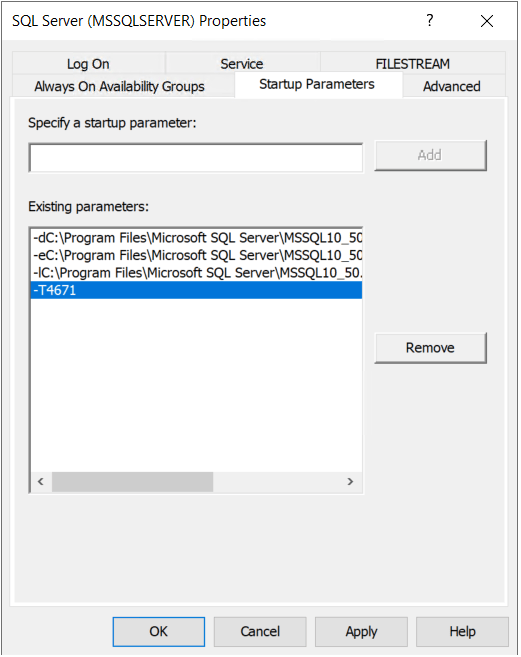
- Double click on the SQL Server instance and go to the Startup Parameters tab.
- Enter -T4671 and click Add.

- The parameter should be added into the list

- Click OK
- Restart SQL Server from SQL Server Configuration Manager, SQL Server Management Studio, or from Services.
- The Default password encryption mode has now been changed, it will be used for new logins or when a password is reset.
- Please reset the ‘sa’ password to “fix” that login via SQL Server Management Studio.
- To see the performance improvements for existing logins, you MUST reset the passwords for all SQL Logins for the change to take effect. You can use GP Power Tools SQL Login Maintenance to perform the password Reset if the logins are already created or Database Validation to recreate Logins and Database Users if the logins have not yet been created.
- If the ‘DYNSA’ Login already exists, SQL Login Maintenance will not reset the password, please reset it using the User Setup window inside Microsoft Dynamics GP.

Note: If using GP Power Tools SQL Login Maintenance to reset passwords, it works best if email addresses for the users have been entered so password reset emails can be sent to users. See the articles below:
Supportability Warning [Edit] (No longer an issue)
Microsoft does not currently support using Trace Flag 4671 unless you open a support ticket and receive explicit approval. [Edit] Microsoft have confirmed that the use of the trace flag is supported and that it only restores the previous security model (as used in SQL 2019 and SQL 2022) as default.
This is critical:
- The trace flag works
- It fixes the issue
But it is not officially supported without Microsoft Support involvement
If you plan to use it in production, you should:
Open a Microsoft support caseReference the PBKDF2 login performance issueRequest approval to use Trace Flag 4671- Document the
approvalusage internally
This protects you from future upgrade or support complications.
Recommended Mitigation Strategy for Dynamics GP Customers
- Switch all non‑GP systems to Windows authentication
This reduces PBKDF2 load significantly. - Enable connection pooling wherever possible
Even small improvements help. - If GP performance is still impacted,
open a Microsoft support case
Request approval touse Trace Flag 4671. - Apply the trace flag
only after Microsoft approves it
This restores SQL 2019‑level login performance. - Monitor waits
If PREEMPTIVE_OS_CRYPTOPS drops after enabling the flag, you’ve confirmed the root cause.
How to Capture Wait Statistics (for GP Troubleshooting)
Run this during a slowdown:
SELECT TOP 20
wait_type,
wait_time_ms / 1000.0 AS wait_time_sec,
waiting_tasks_count,
max_wait_time_ms,
signal_wait_time_ms / 1000.0 AS signal_wait_sec
FROM sys.dm_os_wait_stats
WHERE wait_type NOT LIKE 'SLEEP%'
ORDER BY wait_time_ms DESC;
If you see PREEMPTIVE_OS_CRYPTOPS near the top, PBKDF2 is the culprit.
Checklist: How to Confirm PBKDF2 Is Causing GP Login Slowness
✔ GP uses SQL logins
✔ GP clients open many short‑lived connections
✔ Login latency increases after upgrading to SQL 2025
✔ PREEMPTIVE_OS_CRYPTOPS appears in top waits
✔ Switching non‑GP systems to Windows auth helps
✔ Enabling Trace Flag 4671 resolves the issue
If all of the above are true, PBKDF2 is almost certainly the root cause.
Conclusion
SQL Server 2025 introduces a major security improvement with PBKDF2 password verifiers — but this change has unintended consequences for Dynamics GP environments. Because GP relies heavily on SQL authentication and does not pool connections efficiently, PBKDF2 hashing can overwhelm the system and cause severe login delays.
Using Trace Flag 4671 resolves the issue. But it is not supported by Microsoft unless you open a support ticket. GP customers should work with Microsoft Support to obtain approval before enabling it. [Edit] Microsoft have confirmed that the use of the trace flag is supported and that it only restores the previous security model (as used in SQL 2019 and SQL 2022) as default.
With the right mitigation steps, GP environments can run smoothly on SQL Server 2025 while maintaining stability and performance.
More Information
The following articles provide more information:
- SQL Server 2025 known issues
- SQL Server 2025 known issues: PBKDF2 hashing algorithm can affect login performance
- Support for Iterated and Salted Hash Password Verifiers in SQL Server 2022 CU12
- PREEMPTIVE_OS_CRYPTOPS
I hope this information and solution help you implement SQL Server 2025 with Dynamics GP without any performance issues.
David
07-Jun-2026: Added Steps to reset SQL Login Passwords for performance improvements to take effect.
14-Jul-2026: Updated to mention that Database Validation should be used if the Logins have not yet been created. Also mentioned ‘sa’ and ‘DYNSA’ logins.
15-Jul-2026: Updated to change Microsoft Support status for use of the Trace Flag option to supported.
This article was originally posted on https://www.winthropdc.com/blog.