
#GPPT Form Control Adding “Save and Continue” to Sales Transaction Entry

 GP Power Tools Form Control is a “No Code/Low Code” customization tool for Microsoft Dynamics GP. It can be used to solve many requirements without any coding.
Here is a real-life example showing how you can quickly use Form Control to add menus with shortcut keys to run any script on a window (usually a button).
In Microsoft Dynamics GP, when entering a transaction with many lines, a user might be more comfortable if they can save the transaction after they have entered a number of lines. However, saving usually also clears the current transaction from the window.
The requirement to press add a menu with a shortcut to allow Ctrl-S to be pressed to “Save and Continue” on the Sales Transaction Entry window can be created with the Form Control module in a few minutes.
Adding “Save and Continue”
The FORM CONTROL SOP SAVE Form Control ID is limited by the Base Settings Resource Filter to exactly the SOP_Entry form in the core dictionary (0).
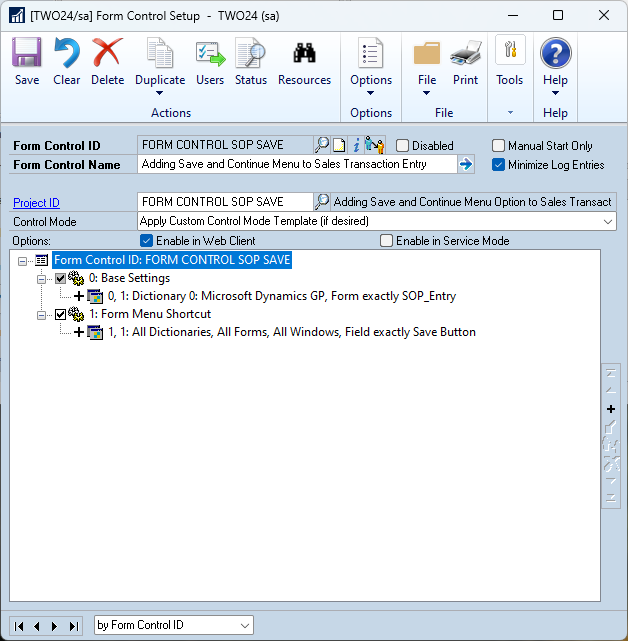
The Form Menu Shortcut rule is limited to exactly the Save Button to ensure that only the save button script is executed when the menu is selected.
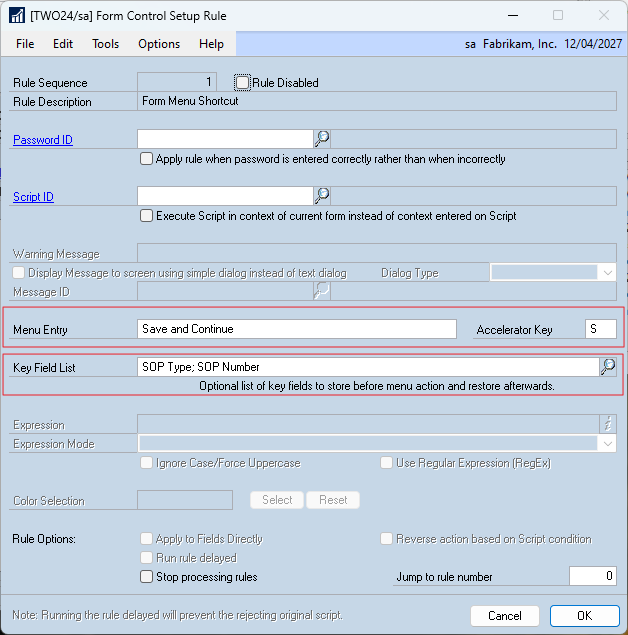
The Menu Entry field contains the wording of the menu option that will be created or added to the “Additional” menu on the window and the Accelerator Key contains the Control key that will be used. So, in this example Ctrl-S can be pressed as a keyboard shortcut for “Save and Continue”. Once the menu is triggered the Save Button is pressed, which is the “Save” portion of the requirements.
To make the “and Continue” part work, we can enter the key fields for the window as a semicolon separated list into the Key Field List field. The value of these fields (for this example: SOP Type and SOP Number) will then be stored BEFORE the Save Button is “pressed” and restored AFTER the Save Button is “pressed” which will redisplay the transaction after it was saved.
Note: If you have Rockton Software’s SmartFill product installed, you might need to change the Accelerator Key used as SmartFill hijacks Ctrl-S on every window, unless you disable it temporarily when the form is opened using additional Form Control rules or Developer Tools triggers.
Downloading and Installing
Download the example settings, import using the Project Setup window (without any project showing, select the path to the xml file and click Import):
The Form Controls will be active immediately when the affected windows are next opened.
More Information
For an introduction series for Form Control with step-by-step instructions see:
For more information see:
- GP Power Tools Portal: https://winthropdc.com/GPPT
- GP Power Tools Samples: https://winthropdc.com/GPPT/Samples
- GP Power Tools Videos: https://winthropdc.com/GPPT/Videos
Hope you find this example useful.
David
This article was originally posted on https://www.winthropdc.com/blog.