
#GPPT GP Power Tools: What’s in the System Features module?
 This is the second article in the #GPPT GP Power Tools: What’s in each module series? of articles.
This article covers the System Features. This module is included free of charge when you subscribe to any of the three chargeable modules. System Features includes many functions needed to support Microsoft Dynamics GP.
Introduction
The System Features module contains features that are used by multiple features in the other modules and so is provided automatically, free of charge, as soon as one of the three chargeable modules has been subscribed to.
Benefits
Here is a quick summary of the benefits:
- Capture and email five different system logs with “One-Click”.
- Capture and email a system status report and screenshots of all windows with “One-Click”.
- Send emails from inside Dynamics GP even with no email client installed.
- Change Dex.ini and registry settings from inside GP, including making GP work well on high resolution monitors.
Features
Below is a list of the features for this module.
The following key is used to denote whether the feature is a Standard Mode (User level) feature (unmarked) or an Advanced Mode (Administrator level) feature and to what build of GP Power Tools the feature was added in parenthesis.
- (A) Advanced Mode Feature
GP Power Tools Logging Control
The Logging control window is the main window for the product. It allows control of the manual and automatic logging features as well as control over non-logging triggers. It also provides additional navigation menus to all the other features.

Logging capabilities are available from the Tools menu of every window in Microsoft Dynamics GP, so a single click can start logging and a single click can stop the logging and send the logs as an email. Enable logging without having to exit the application or modify Dex.ini settings, only affects current instance… perfect for terminal servers.
Logs can include:
- Dexterity / SQL Log – Communication between GP and SQL
- SQL Profile Trace – What happens at SQL after calls from GP
- Dexterity Script Log – All Dexterity scripts called with parameters
- Dexterity Script Profile – Dexterity Scripts with performance counters
- Macro Recording – Recording of all actions at the User Interface
Note: Automatic Logging and non-logging triggers require the Developer Tools module.
Capture Screenshots
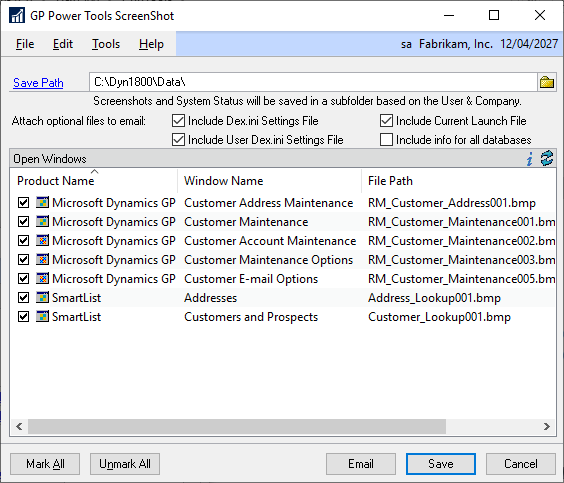
With a single click, screen shots of every open window can be saved or emailed along with a System Status report and optional Dynamics.set and Dex.ini (System & User) files.
Send Email
Powered by the GP Power Tools email engine, this feature allows emails to be sent by users from within Microsoft Dynamics GP even when an email client (such as Outlook) is not installed on the workstation or terminal server. Can be used for sending exception reports to Support.

Calculator (27)
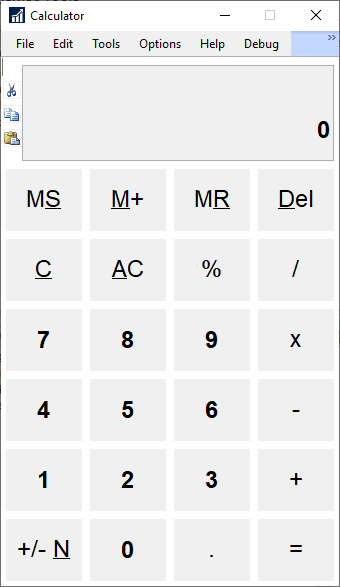
This touch friendly standard calculator built inside Microsoft Dynamics GP with clipboard support can be used to perform quick calculations.
Dex.ini Settings
This window has four tabs of Dex.ini and registry settings which can be changed on the local workstation to tweak Microsoft Dynamics GP behaviour or enable debugging features. It also includes the solution to getting Microsoft Dynamics GP to display correctly on high resolution monitors with a DPI setting greater than 100%.

Administrator Password Setup (20) (A)
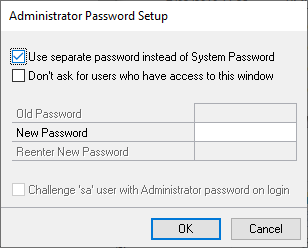
Provides the option to use a separate GP Power Tools Administrator Password instead of the Dynamics GP System Password to access Advanced Mode (Administrator) features. Also provides the option to challenge the ‘sa’ user on login to provide this password to prevent easy access to your accounting system by non-financial database administrators.
Logging Settings (21) (A)
Setup for the logging features of GP Power Tools including; specifying the shared location store logs, whether to email logs when stopping logging, and the setup for SQL Profile Tracing.

Email Settings (21) (A)
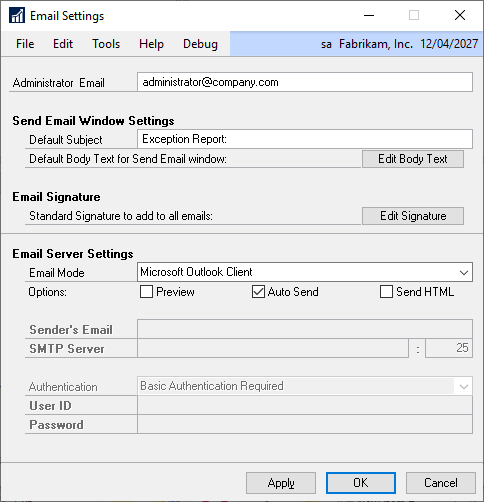
Setup for the email engine of GP Power Tools including; email mode, user credentials, and default values for email address, subject line and email body.
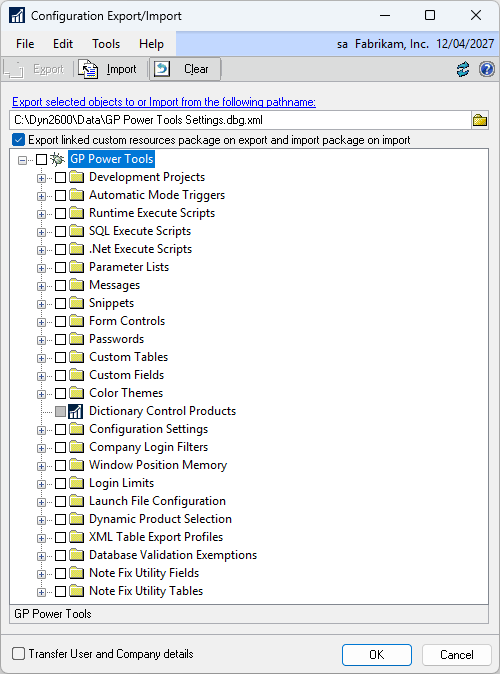
Configuration Export/Import (A)
This window is used to export and import settings so they can be shared between systems, or backed up for archival purposes. This is also how support engineers or developers can send scripts to be loaded onto customers’ systems.
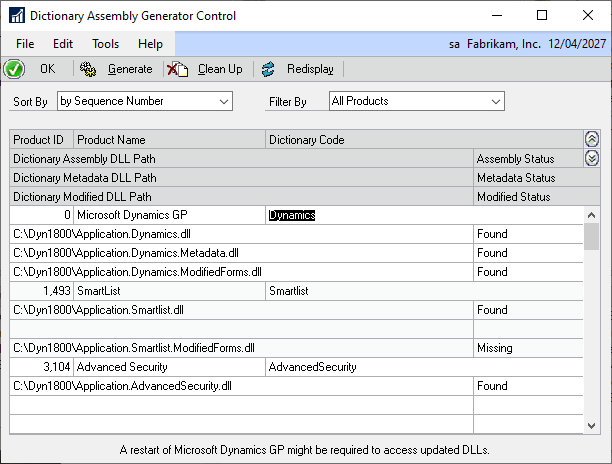
Dictionary Assembly Generator Control (28) (A)
This window is used check for and create or update the Dictionary Assembly DLL files used for .Net scripting in Visual C# and Visual Basic.Net as well as obtaining procedure and function parameter information.
Additional windows
The following windows are available at all times, even when no other modules are registered.
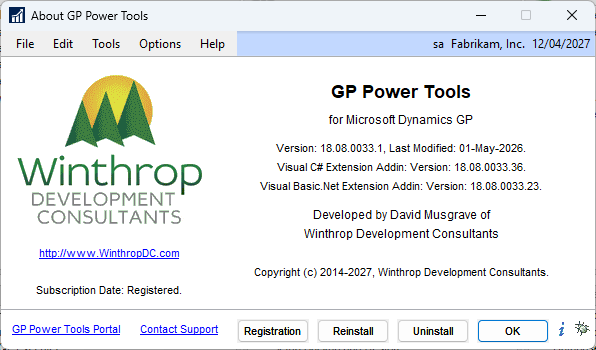
About GP Power Tools
This window provides all the details about the currently installed product as well as access to the registration and version check functionality.
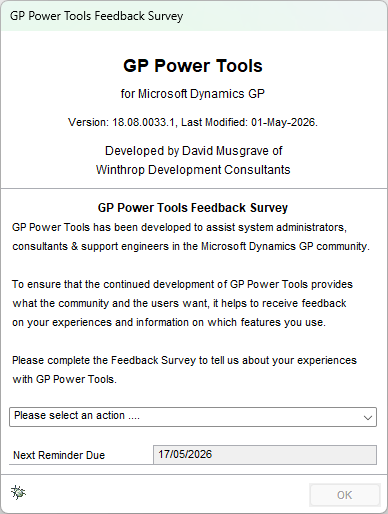
GP Power Tools Feedback Survey
This window requests optional feedback to help improve the features of the product.
Configuration Maintenance (A)
This window can be used to check how much data is stored in the GP Power Tools tables and to clear data from those tables.

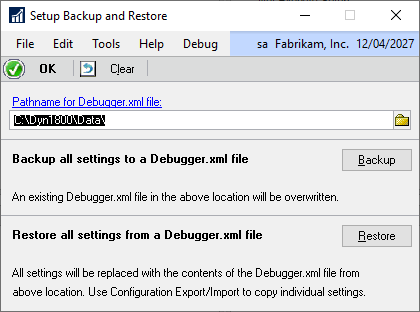
Setup Backup and Restore (20) (A)
This window is used to backup and restore all the data stored in the GP Power Tools tables using an xml file which can easily be transferred between systems. Use the Configuration Export/Import feature to transfer specific data.
Extra Features/Fixes
Just by installing GP Power Tools on your system, you also get a number of extra features and fixes to bugs. Examples include:
- Remembering the last company logged into
- Remember User checkbox on login window is enabled correctly when using per user Dex.ini files
- Applying User Preferences more than once without closing the window works
- Never getting an error when changing user access and SQL and GP don’t match
- The syCurrentResources (SY09400) table is populated with data for all resource types and security objects.
- Raise All Windows menu option available from Tools menu on all windows.
- Exit After Processes menu option available from application level menu.
- Build 27 adds Displays User Name information to the “This transaction is being edited by another user.” for SOP and POP windows.
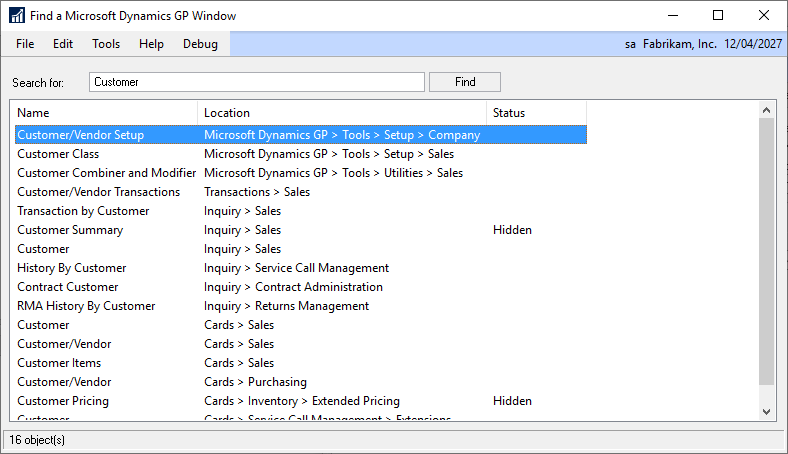
- Making the Find a Microsoft Dynamics GP window feature available (just press Ctrl-F). It will search all menu navigation options for the specified text.
- Build 31 adds a More Info button to the dialog displayed for <TEST> and <HISTORICAL> companies which shows information such as the General Ledger transaction date range and database restore details.

- Build 32 fixes an issue with Customer email attachments files having the incorrect extension (file type), especially Statements where PDF files are given a DOCX extension.
- Build 33 fixes invalid entries in the Multicurrency User Prefences table to avoid windows incorrectly show zero amounts due to the wrong currency view being used.
- Also fixed is an issue where the Customer Inquiry window generates errors after the Customer ID field has been manually cleared.
I hope this helps your understanding of GP Power Tools and what it can do for you. If you want more details than provided in this series, please download the GP Power Tools User Guide manual, which contains 919 pages of detailed description of every feature in the product.
You can also download and install the product, NFR (Not for Resale) Keys are available for partners and a free 30 day trial is available for customers (just install and follow the on screen instructions). GP Power Tools can also work with no registration keys if only the sample company is installed.
I firmly believe that all Microsoft Dynamics GP sites globally should have GP Power Tools installed, and the articles in this series will explain why.
David
12-Feb-2019: Updated after the release of build 26 of GP Power Tools.
24-May-2019: Updated after the release of build 27 of GP Power Tools.
11-Aug-2020: Updated after the release of build 28 of GP Power Tools.
13-Aug-2022: Updated after the release of build 29 of GP Power Tools.
22-Aug-2023: Updated after the release of build 30.1 of GP Power Tools.
19-Aug-2024: Updated after the release of build 31.1 of GP Power Tools.
23-Jun-2025: Updated after the release of build 32.1 of GP Power Tools.
01-May-2026: Updated after the release of build 33.1 of GP Power Tools.
This article was originally posted on https://www.winthropdc.com/blog.
Hi David,
We just got the Admin Tool couple of days ago, and yet to explore all the features in detail. Is there an option to choose list of menus under Enhanced Security Tree and save it as a Task .
We want to control everything through Custom Security Task that we have created .
Would be nice to view/edit all the security of a Security Task, under the Enhanced Security in a Tree View. So that it will be easy to select the menus/screens/reports and save.
Thanks,
Jothikrishnan
Hi Jothikrishan.
You can use the Security Profiler to easily create/update Security Tasks. From the Security button drop down list select start capture. Then open every window, sub window and report. Then stop capture and use the window that opens to create the task.
I will add your suggestion for Role and Task view on the Enhanced Security window.
David.
PS: You should have added this comment on the Administrator Tools article.
Hi David,
It is awesome! Updating the task greatly helps. And Thank you for adding the suggestion 🙂
Sorry my bad…I will post it correctly next time 🙂
Regards,
Jothikrishnan