
Displaying Dates in any format on Reports

 This is a reposting of an article I originally wrote on my Developing for Dynamics GP blog.
Over the years, I have seen a huge amount of effort and multiple calculated fields to format a date field on a report into a desired format that is something other than the default short date format, usually DD/MM/YYYY or MM/DD/YYYY depending on country (as defined in the control panel).
While you have to admire the efforts that people will go to to get a date displayed in a desired format, it frustrates me that so much effort goes into something that could be so quickly and easily achieved with the RW_DateToString() user defined Report Writer (RW) function.
The RW_DateToString() function is one of a suite of functions that I developed back in 2002 and got added to the core Dynamics.dic application dictionary for versions 7.0 onwards. For details on the other RW functions added, see the post on this blog in the more information section below.
To use the RW_DateToString() function, follow the steps below:
- Create a string calculated field
- Select the Functions Tab
- Select User-Defined
- Select Core: System
- Select Function: RW_DateToString
- Click Add
- Select the Fields tab
- Locate the date field you want displayed
- Click Add
- Select the Constants tab
- Select Type: String
- Enter the Constant as the desired date format template (see below)
- Click Add
- Click OK
The final Calculated Expression should be something like:
FUNCTION_SCRIPT( RW_DateToString Date “mmmm DD, YYYY” )
For example:
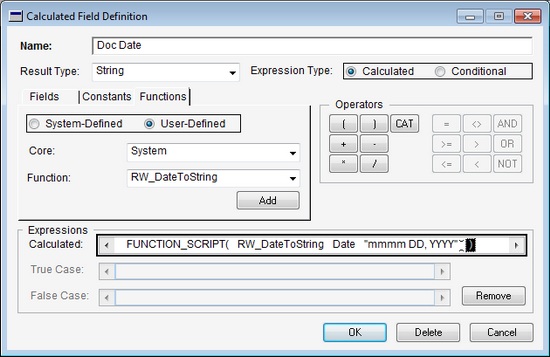
For today’s date the format string “mmmm DD, YYYY” will produce “August 16, 2010”.
The date format template string is a string constant which describes to the RW_DateToString() function how to display the date. Any text can be contained in the string and the following placeholder characters will be substituted with the appropriate:
Placeholder Characters Date Component Format ddd day of week as 3 letters dddd day of week in full N day of year NN day of year (padded) D day of month DD day of month (padded) M month of year MM month of year (padded) mmm month of year as 3 letters mmmm month of year in full YY year of date (2 digits) YYYY year of date (4 digits)
Note: If you want to change the language of the days of the week or the months of the year, please use the Modifier to change Message Resources IDs 12201 onwards and 18618 onwards respectively. These messages are used elsewhere in the application, so changing them here will affect more than just the RW_DateToString() function.
For more information see the posts below:
- This blog: Using the built-in Report Writer Functions
- DynamicsGP.ie blog: International date formats in Report Writer
I hope this saves you lots of time. Enjoy.
David
This article was originally posted on the Developing for Dynamics GP Blog and has been reposted on https://www.winthropdc.com/blog.
Posting from Mark Polino at DynamicAccounting.net
msdynamicsgp.blogspot.com/…/displaying-dates-in-any-format-on.html
Posting from Vaidy Mohan at Dynamics GP – Learn & Discuss
http://www.vaidy-dyngp.com/…/rwdatetostring-david.html
How would I be able to use this to show the current date (or today's date)?
Hi Aaron
You can use 'User Date' of globals to obtain the current User Date, RW_SysDate(0) to get today's date from the workstation or RW_SysDate(1) to get today's date from the SQL Server.
Once you have the date as a calculated field you can pass it to the RW_DateToString() function.
David
Great article. Easy to use and I got the information I needed on my time keeping reports!!!
Hi Barry
Glad that the RW function I got added to GP core code is making your life easier.
David